
 US English
 UK English
 Português





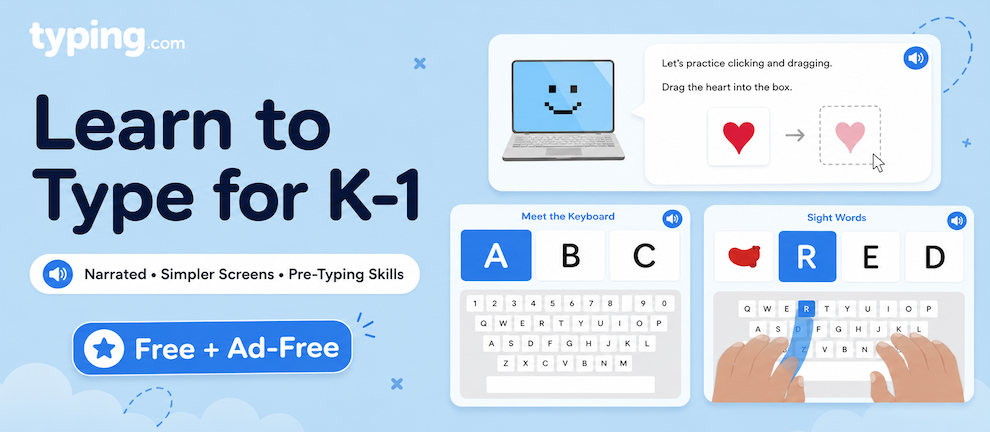
Teaching typing to your youngest students comes with a challenge no other grade band has: many of them can't read the instructions yet. The new Kindergarten and 1st grade Learn to Type curriculum is built for exactly that — narrated screens, fewer choices, and a focus on the skills that come before typing.
And it's completely free. No PLUS plan required, and no ads for K and 1st grade students, even on free accounts.
What's New?
Three brand-new Learn to Type units, built specifically for early readers — all free on every account:
-
Getting Started — 9 lessons, Kindergarten and 1st grade
-
Top and Bottom Rows — 8 lessons, Kindergarten and 1st grade
-
Numbers and Beyond — 13 lessons, 1st grade only
The lessons themselves work differently for these grades, too:
-
Read-aloud narration throughout lesson screens, so students who aren't reading yet can still work independently
-
Uppercase or lowercase keyboard selection, so what's on screen matches the keyboard in front of your student
-
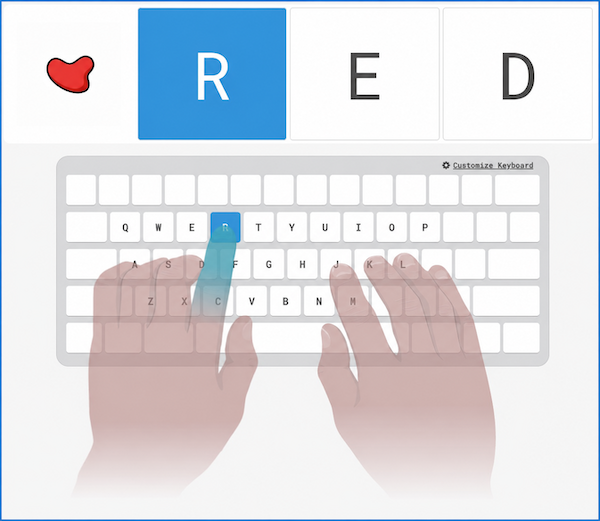
Guided finger placement with one hand shown at a time and a blinking target key
-
Auto-advance between screens, so students aren't stuck waiting for a keypress they don't understand yet
-
A quieter screen with fewer elements and fewer decisions
How Does It Work?
Getting Started
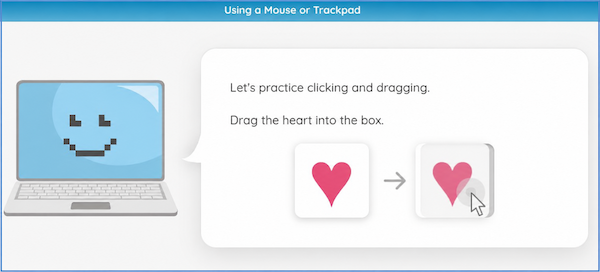
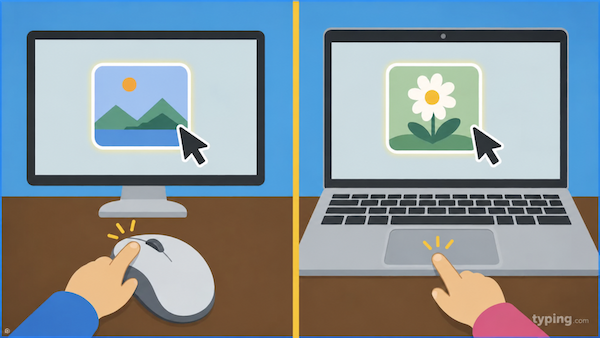
Before students type anything, they get comfortable with the computer itself. Getting Started opens with mouse and trackpad practice — clicking targets, dragging objects into place — and drag-and-drop activities for identifying the parts of a computer. From there, students find their way around the keyboard and begin typing the home-row letters with the correct fingers.
Top and Bottom Rows
Next comes the rest of the alphabet, row by row. Students locate and type every top-row and bottom-row letter with the correct fingers until they've covered all 26 letter keys. Letters are introduced in a consistent order, so the pattern stays predictable.
Numbers and Beyond
This one is 1st grade only, and it's where students start putting letters together. They learn the number keys and the everyday keys they need to actually write something — space bar, period, Enter, and backspace. Backspace gets real instruction, including a dedicated exercise where students erase a full line of letters and get feedback if they reach for the wrong key.
Then they type their first words: sight words, short nouns, and color words, with pictures alongside them. A student typing red sees the color, not just the letters.
Uppercase or Lowercase — Students Choose
Here's a small detail that solves a real classroom headache. Chromebook keyboards usually show lowercase letters on the keys. Most other keyboards show uppercase. For a five-year-old, that mismatch is genuinely confusing.
So students pick the keyboard that matches what's in front of them. That choice updates the on-screen keyboard and the target letters and words in the lesson. And casing is forgiving — the lesson accepts the correct letter whether or not a student holds Shift.
Learning a New Key
Every new key follows the same pattern, so students always know what to expect:
-
One hand appears on screen — not the full keyboard
-
The target key blinks
-
A translucent hand animation shows exactly which finger to use
-
Wrong keys get immediate, gentle correction
-
A short practice loop reinforces the key before moving on
Short embedded game moments break up the practice, too — typing the right letters to hop a character up a tree, for example. Students earn XP and level up through friendly ranks like Typing Seedling and Typing Sprout.
A Screen Built for Early Learners
Lesson screens for these grades are deliberately quiet. Speed and accuracy stats, achievements, problem keys, streaks, and the class scoreboard don't appear — those tools matter later, but at this age they pull attention away from the keyboard. Progress shows up in a minimal format instead.
That's by design, and it matches the benchmarks. Typical proficiency is 2–5 WPM in Kindergarten and 5–7 WPM in 1st grade, with the focus squarely on technique rather than speed or accuracy targets.
What Else Is Available for Kindergarten and 1st Grade?
Learn to Type is the free keyboarding core, and it's the heart of these grade levels. If you have a PLUS plan, there are five Beyond Typing units for K and 1st as well:
-
Technology Foundations — meeting your device, logging in safely, browsing, and saving and sharing work
-
Digital Citizenship — safe sharing, asking a trusted adult, digital footprints, and screen-time balance
-
Cross Curricular 1: World and the Arts — social studies, geography, health, arts and music, Spanish and French basics, and life skills
-
Cross Curricular 2: STEM — typing passages tied to grade-level NGSS science and Common Core math
-
Patterns — early coding through patterns and sequences
Between Learn to Type and Beyond Typing, that's 7 units and 102 lessons at Kindergarten, and 8 units and 116 lessons at 1st grade. The free Typing Tests and Custom Lessons are available at both levels too.
Where Can I Find It?
Just select K or 1 for the curriculum in any new or existing class. The new units are there and ready to assign.
How Does This Help Me?
-
Students can work independently sooner. Read-aloud narration and auto-advance mean fewer hands in the air asking what the screen says.
-
Less time troubleshooting keyboards. The uppercase/lowercase choice heads off the most common source of confusion in a K–1 computer lab, especially on Chromebook carts.
-
Real pre-typing skills get taught. Mouse control, drag-and-drop, and identifying the parts of a computer are the foundation everything else sits on — and they're often the hardest to find good material for.
-
Fewer distractions to manage. Without scoreboards, streaks, and speed stats on screen, students stay on the lesson in front of them.
-
A clear on-ramp to 2nd grade. By the end of 1st grade, students have all 26 letters, the numbers, and the space bar, period, Enter, and backspace — everything they need to type a real sentence.
-
Nothing to buy, and nothing to distract. All three units are free, and K and 1st grade lessons are ad-free for every account.
We'd love to hear what you and your students think!