
 US English
 UK English
 Español



What if finishing a lesson came with an eggciting little surprise? With Pets, your students can earn eggs as they complete lessons, hatch them into adorable animated pets, and choose a favorite to keep them company on Typing.com. And yes, you can turn them off for a whole class with a single checkbox. With PLUS, you can also turn them off for individual students!
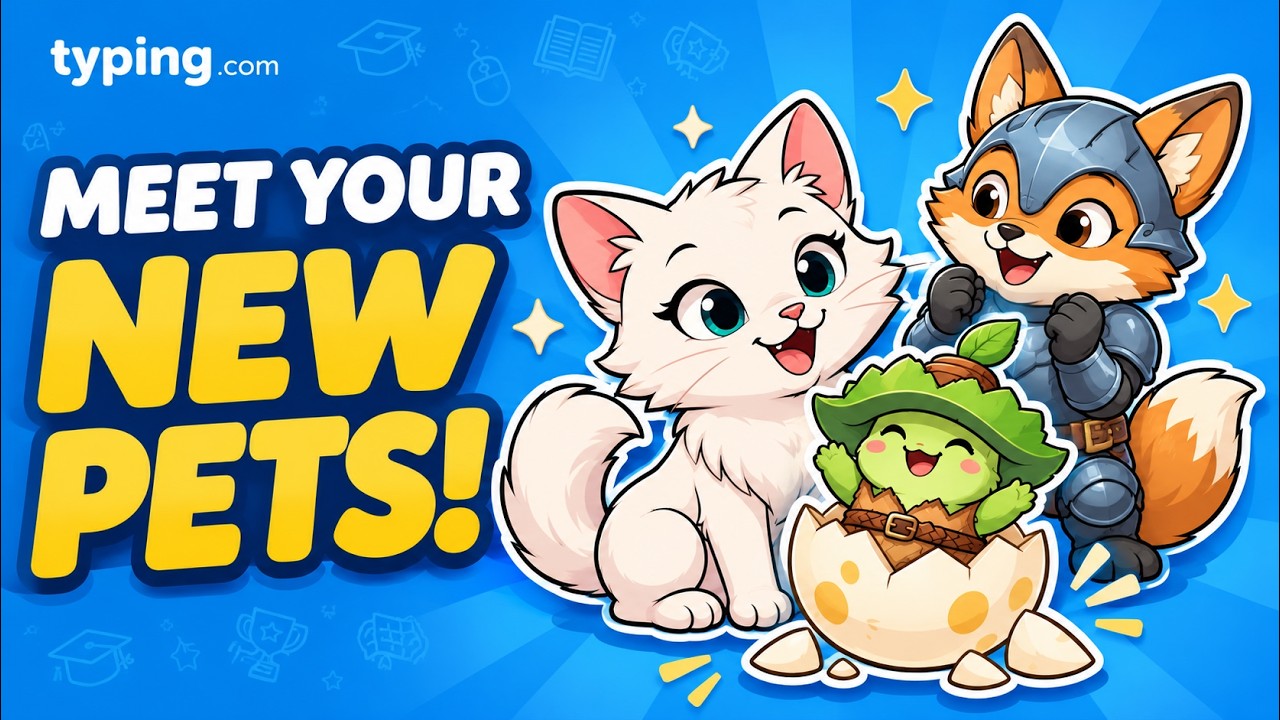
Click the image above to watch a quick video on how Pets work.
What's New?
Pets are collectible companions that students earn by completing lessons. There are 60 to discover, from cuddly critters to a few cooler characters, and even some familiar Nitro Type cars. Every pet is fully animated, so it walks, hops, thinks, cheers, celebrates, and even dozes off if things get quiet.
Here's the quick version:
-
Students earn an egg for each new lesson they complete.
-
Eggs hatch into pets that students collect and equip.
-
Pets are free for everyone. Nobody has to shell out a thing, and every student can collect all 60, whether your school uses Typing.com for free or with PLUS.
-
Pets are just for fun. They don't affect scores, stars, or any of the data in your reports.
-
Pets stay out of the way while students type, so practice time stays focused.
-
You're in control. Pets are on by default, and you can turn them off for a class. With PLUS, you can also turn them off for individual students.
How Does It Work?
Earning Eggs
Students earn one egg the first time they complete a curriculum lesson. That's it! There's no accuracy target or star minimum to hit.
A few things don't earn eggs:
-
Repeating a lesson they've already completed
-
Custom lessons
-
Typing tests and games
Eggs also aren't handed out for lessons completed before Pets launched. Every student starts their collection fresh from launch day.
Hatching and Collecting
When a student finishes a lesson, their egg appears right on the Lesson Complete screen, wiggling and ready to go. Students crack it open to reveal their new pet, and they can equip it on the spot.
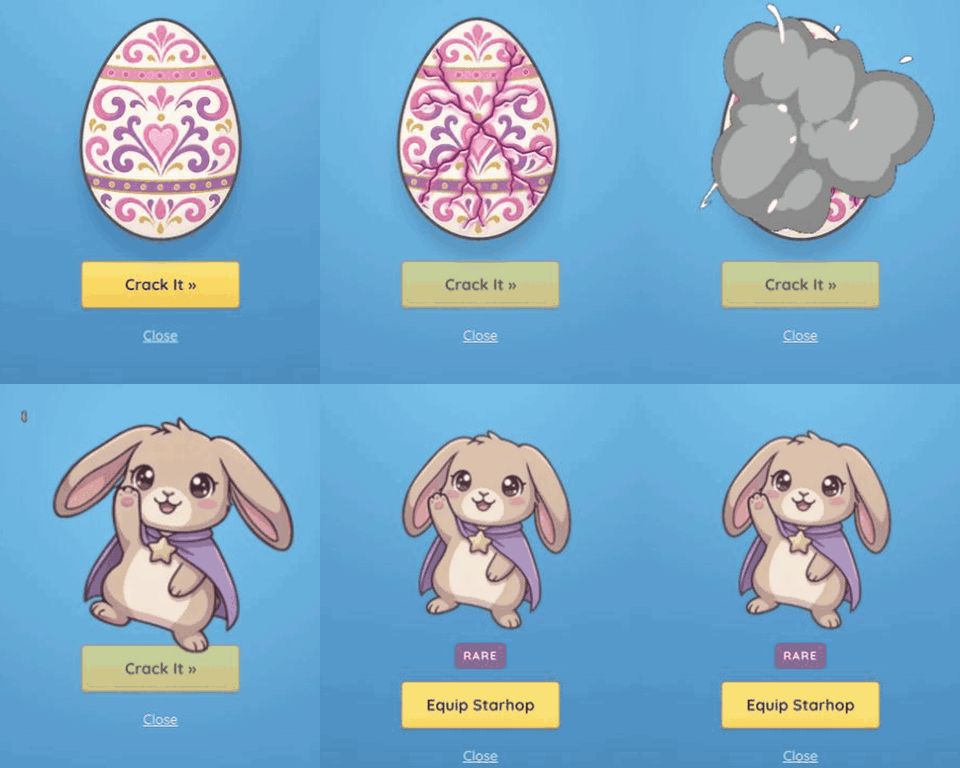
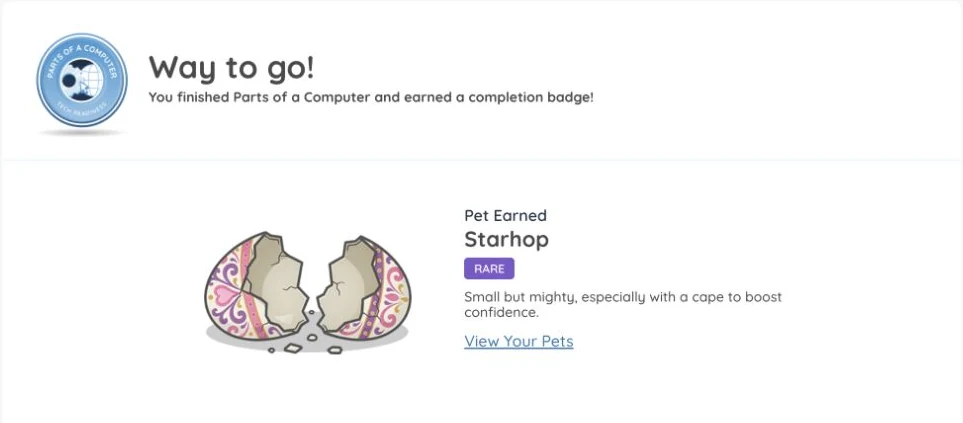
In a hurry to get to the next lesson? No problem. Any egg they don't hatch right away waits for them on the Pets page.
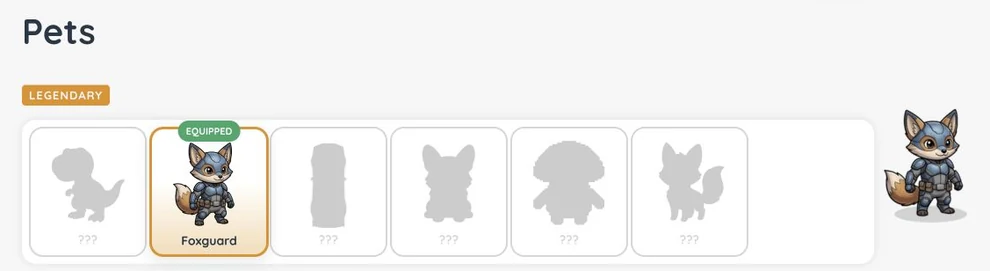
The Pets page is where students see their whole collection, plus silhouettes of the pets they haven't found yet. They can hover over a pet to watch it come to life and equip whichever one they like best. Swapping pets is always allowed.
Pets Around Typing.com
Outside of lessons, a student's pet follows their cursor and explores the page. It steers clear of buttons, links, menus, and pop-ups, so it never blocks something your students need to click.
Students can also:
-
Move their pet. Pick it up, drop it somewhere, and it stays put.
-
Call it back. Click the pet and it starts following again.
-
Send it away. Drag the pet to the dismiss area at the bottom of the screen. They can bring it back any time from the Pets page.
Pets During Lessons
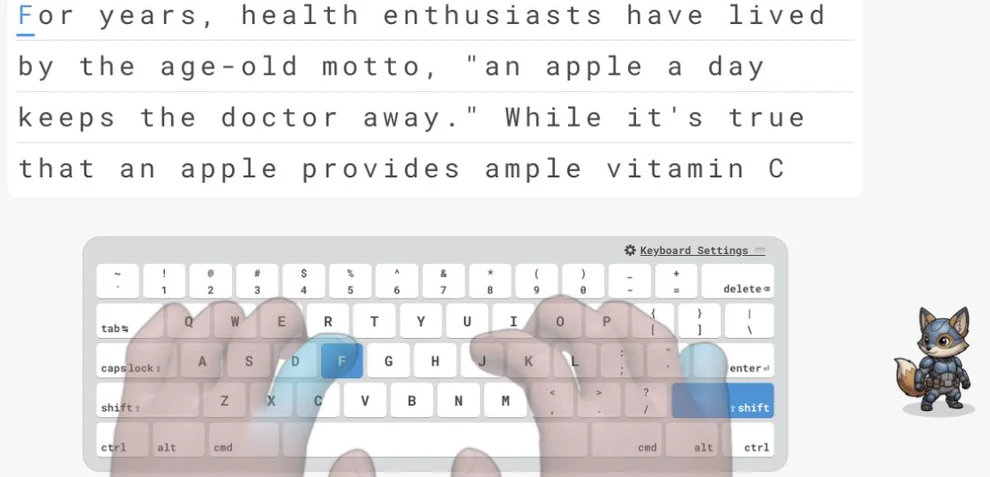
Worried a pet might steal the spotlight during typing practice? Don't worry, we've got you! On lesson screens, the pet settles into a set spot away from the lesson content and holds still while your students type. It never reacts to individual keystrokes, and it saves its big celebration for when the lesson is done.
Where Can I Find It?
For students, it all happens automatically. Eggs show up on the Lesson Complete screen, and their collection lives on the new Pets tab in the student navigation.
For teachers, the Pets setting lives in Class Settings in the Teacher Portal. With PLUS, you can also control Pets through Student Settings. More on that below!
How Do I Turn Pets Off?
Pets are on by default, but you can switch them off for a whole class whenever it suits your classroom. With PLUS, you can also turn them off for individual students. To turn Pets off for a class:
-
Log in to the Teacher Portal and go to Classes.
-
Open the class and select Class Settings.
-
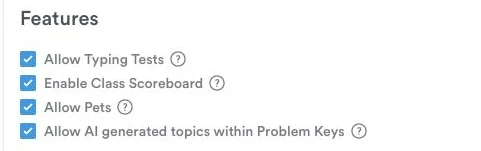
Open the Advanced Options panel and uncheck Allow Pets.
-
Save your changes. Students who are already logged in will need to log out and back in for the change to take effect.
Using PLUS and want to turn Pets off for just one student? Open that student's Student Settings, head to Advanced Options, and uncheck Allow Pets there.
So what do your students see when Pets are off? Nothing at all! The Pets tab, eggs, and pets disappear from their view completely, so nobody's left wondering where their buddy went.
Best of all, nobody loses anything. Students keep earning eggs quietly in the background, and everything they've collected is saved. If you turn Pets back on later, their pets are right where they left them, and any eggs they earned in the meantime are waiting to hatch.
How Does This Help Me?
Pets give your students one more reason to keep moving through their lessons. Here's what that means for you:
-
Motivation that points forward. Eggs come from finishing new lessons, so the reward nudges students ahead in the curriculum instead of replaying old ones.
-
Zero setup. There's nothing to configure, assign, or track. Students start earning as soon as they finish their next lesson.
-
Built for focus. Pets hold still during typing and keep clear of buttons, so practice time stays practice time.
-
Your classroom, your call. A single checkbox turns Pets on or off for a class. With PLUS, you can also control Pets for individual students. Students never lose what they've earned.
-
A moment to celebrate. Every newly completed curriculum lesson ends with something egg-cellent to look forward to, which goes a long way with younger typists!
And for your students? A growing collection to show off, a new buddy to egg them on, and a fun little surprise waiting at the end of every new lesson.
Keep an eye out for that first wiggling egg, and get ready for your students to ask which pet you'd pick!